 Jenna
Jenna
The Jenna app, screen by screen
Everything you will click, in the order you will meet it. Written so you can run Jenna alone, including after we set a mission up for you. Screenshots are from a fresh free account on the live app, October 2026.
- Sign up and sign in
- Finding your way around
- Launching a mission
- Watching a run
- Results: verdict, video, report
- The Library
- Re-running and duplicating
- Mission settings: routine, secrets, knowledge, variables
- Sharing a project
- Settings, API keys, mission limits
- Balance and billing
- After a handover: your day to day
1. Sign up and sign in
The app lives at jenna.haredev.com/app. Sign-up takes an e-mail address and a password, or an Apple or Google account, then a code sent by e-mail. A new account starts with 120 free recording minutes and no card.
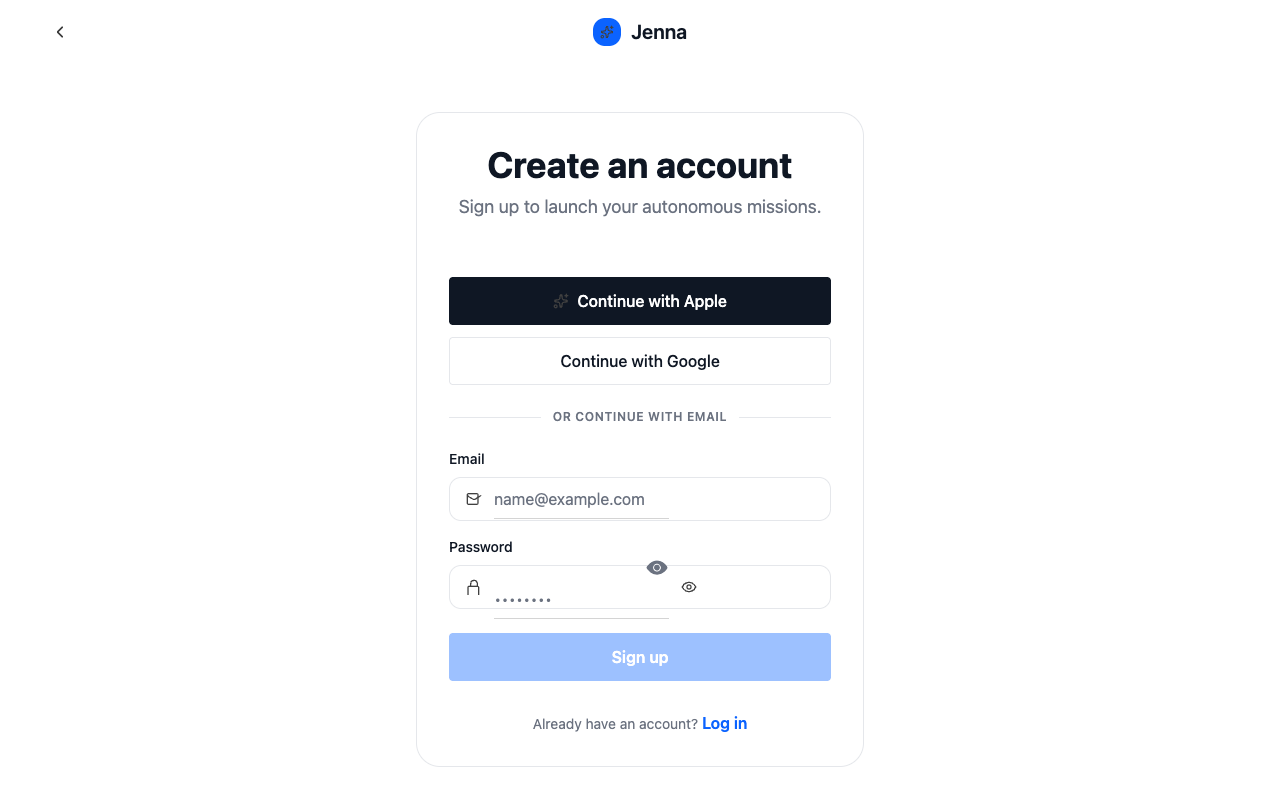
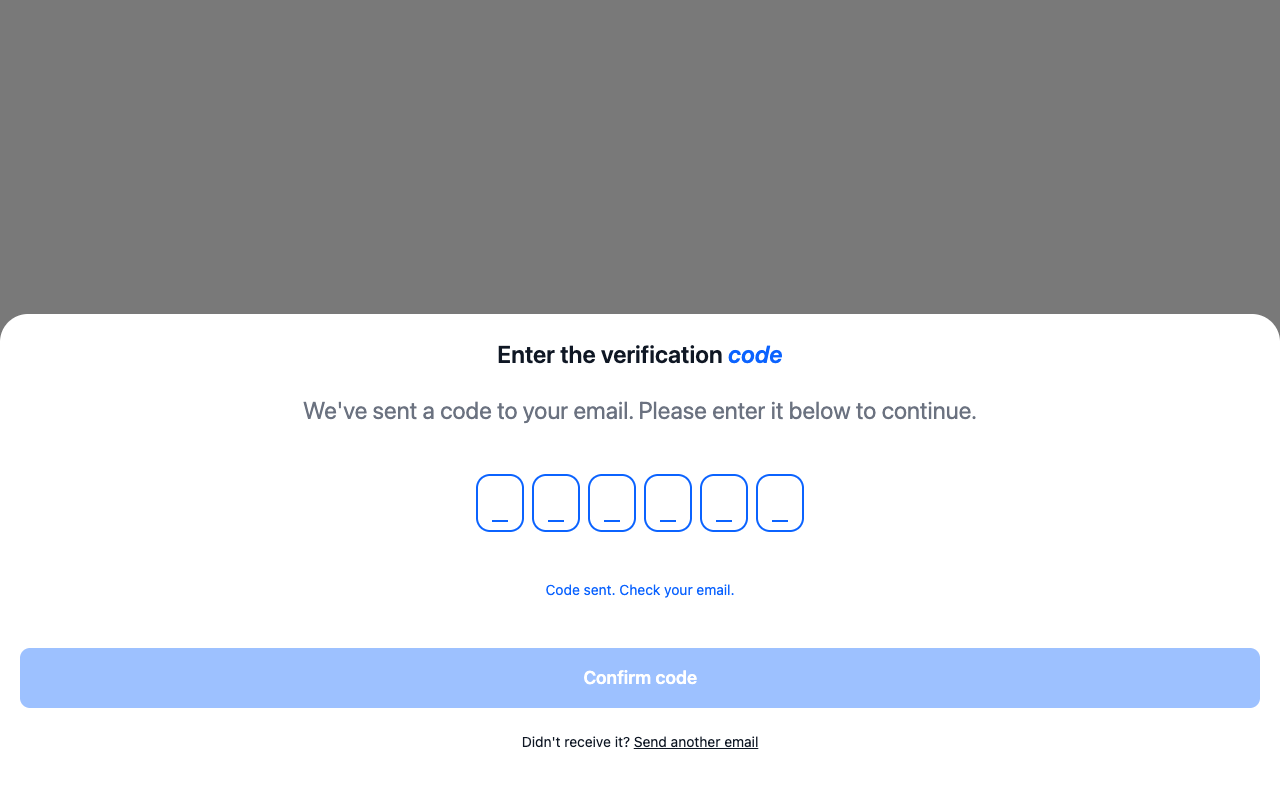
Signing in later uses the same e-mail and password on the Login screen. "Forgot?" next to the password field starts a reset by e-mail.
3. Launching a mission
On the Launchpad, the "New site" tab creates a project and its first mission in one form, and starts the first run immediately on submit.
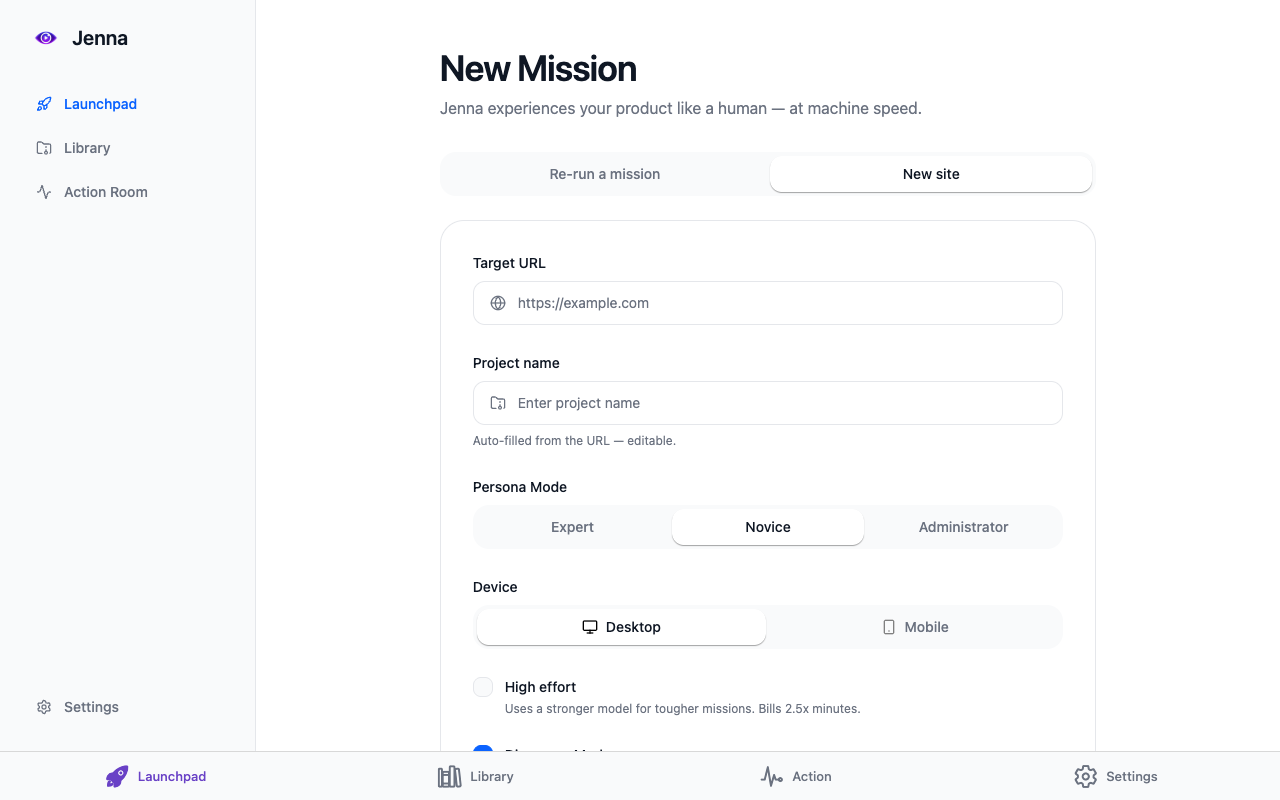
- Target URL
- The page Jenna opens first. Anything public, or a login page if the mission has credentials (see secrets below).
- Project name
- Filled from the URL. One project per site keeps the Library readable.
- Persona Mode: Expert, Novice, Administrator
- Who Jenna pretends to be. Novice surfaces onboarding friction, Expert surfaces efficiency problems, Administrator is for back-office flows behind a login.
- Device: Desktop or Mobile
- The browser size Jenna uses.
- High effort
- A stronger model for tougher missions, billed at 2.5 times the recording minutes. Use it for judgement-heavy work such as marking or long multi-step journeys.
- Discovery Mode
- Ticked by default. Jenna explores the site on her own, finds friction and proposes test scenarios. The button reads "Launch discovery". The right first mission on a site you have never audited.
Untick Discovery Mode to write the mission yourself. Two more fields appear.
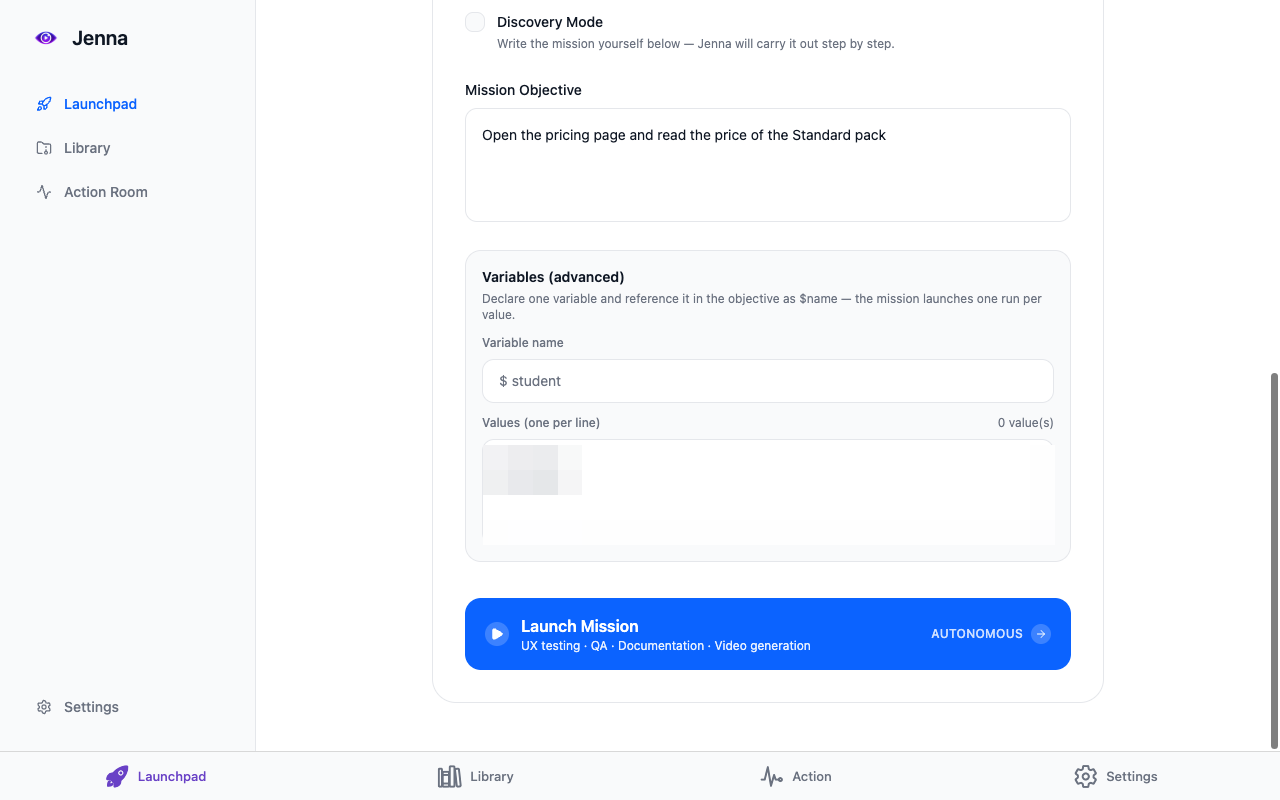
- Mission Objective
- What Jenna must accomplish, in plain language: "Add any product to the cart and reach payment", "Open the pricing page and read the price of the Standard pack". Replace the example text. Say when she is done, for example "then finish", so the run ends cleanly.
- Variables (advanced)
- One variable per mission, referenced in the objective as $name. One run starts per value in the list. This is how a cohort works: the objective says "assess $student", the values are the names, and each name gets its own run.
Narration is on by default and cannot be switched off on this form. It can be turned off afterwards in Mission settings, which halves the cost of later runs. Mode, video format, difficulty and retries are not on this form either: a run from here is a walkthrough in 16:9 with your account defaults from Mission limits.
Launch Mission creates the project and the mission, names the mission from the objective, starts the run and opens the Action Room. Minutes are consumed from that moment.
4. Watching a run
The Action Room shows the run live. On the left, the page Jenna is on. On the right, the Audit Log: one line per step with the time, a difficulty score out of 10 for a human visitor, and Jenna's one-sentence reasoning.
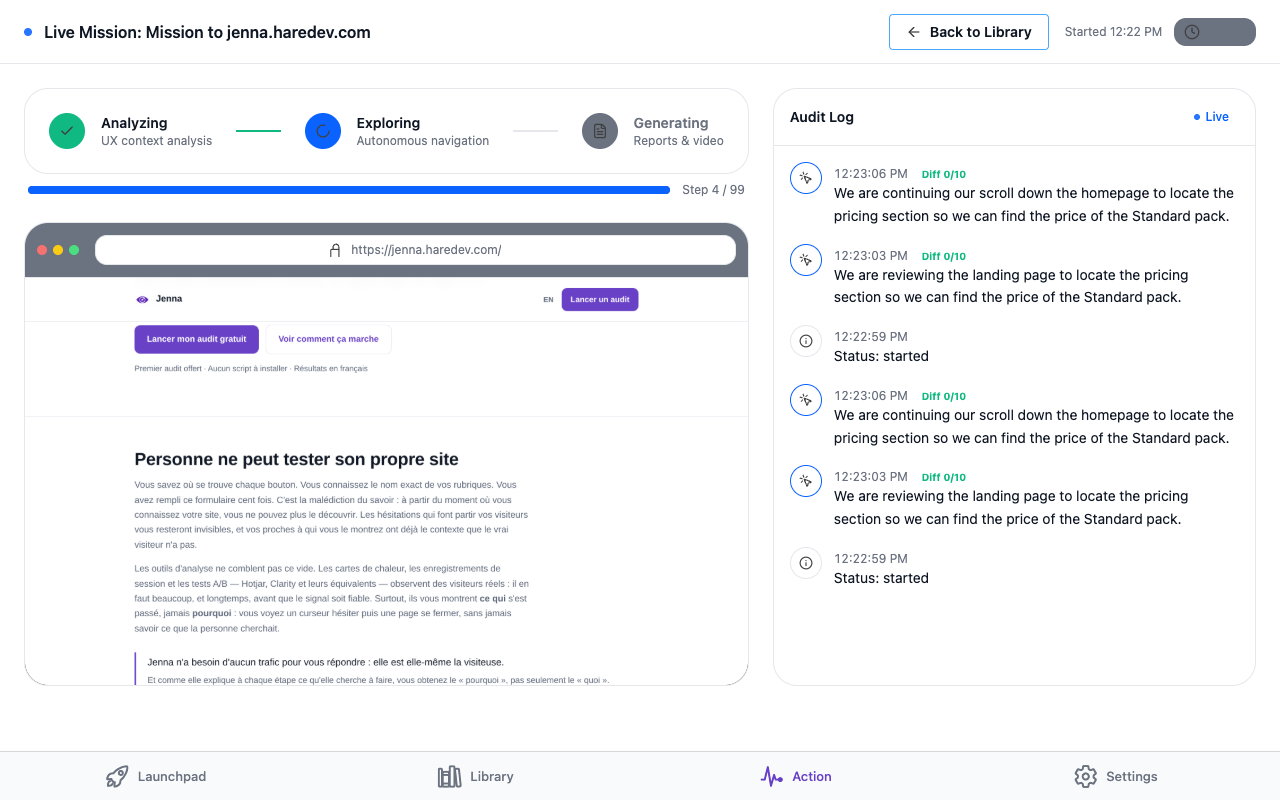
- Analyzing: Jenna reads the page and the objective.
- Exploring: she navigates, clicks, types and reads, one step at a time, up to the step budget.
- Generating: the video and the reports are produced. This takes a minute or two after the last step.
You can leave the page. The run continues on our side; "Back to Library" takes you to the project, and the run reopens from there.
A run can end early for reasons that are not about the site: the step budget, the wall-clock limit, or a page Jenna could not drive after the allowed retries. The log says which. A run that ends because a step was too hard for a human visitor is a real finding.
5. Results: verdict, video, report
When a run finishes, the Library card for the mission shows its status, its UX score and the artifacts: the session video, the report and the step log. The video shows the whole journey with narration unless you turned it off. The report scores the experience and lists the friction points with the step where each was seen. The step log is the Audit Log, kept.
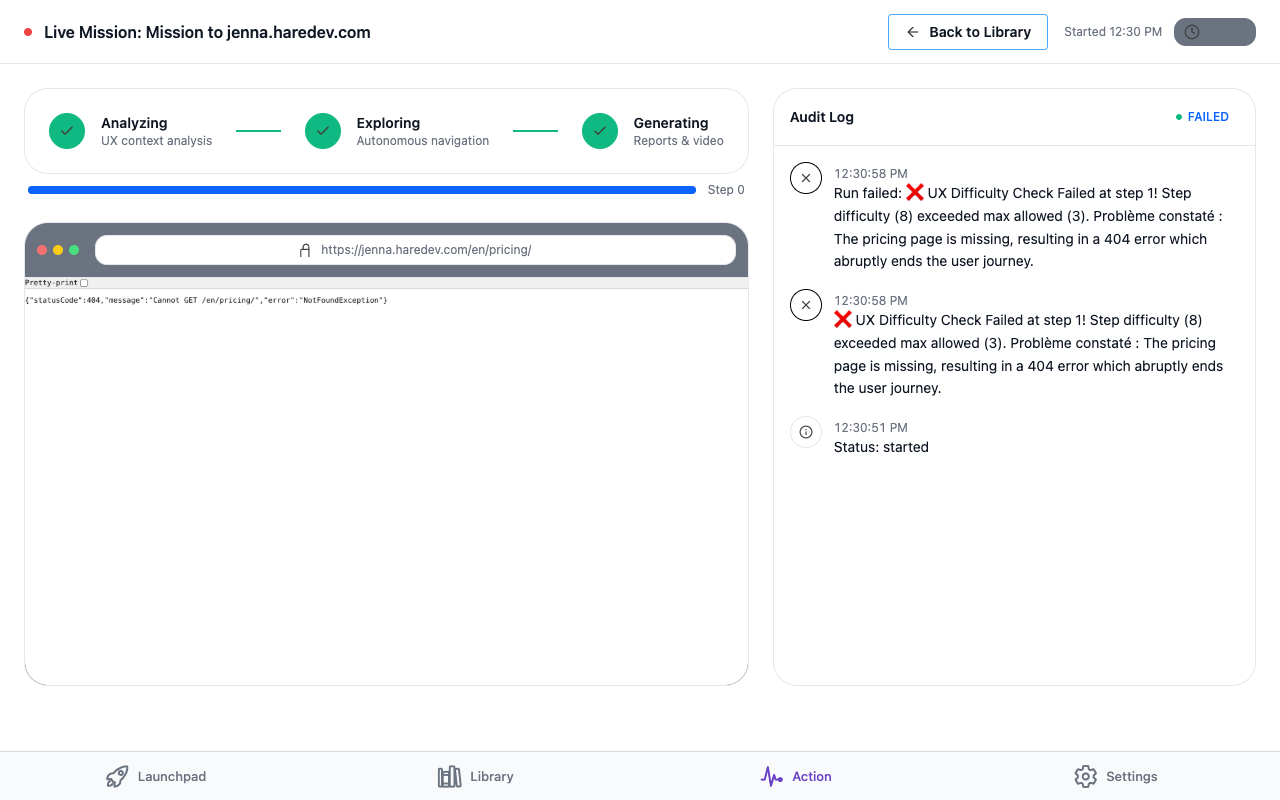
Verdicts are honest. A run reports completed, blocked or failed, and shows where. If the objective was not completed, the status says so even when the agent got close. If you see "No artifacts available yet" after a few minutes, open the Action Room from the card and read the last log lines.
6. The Library
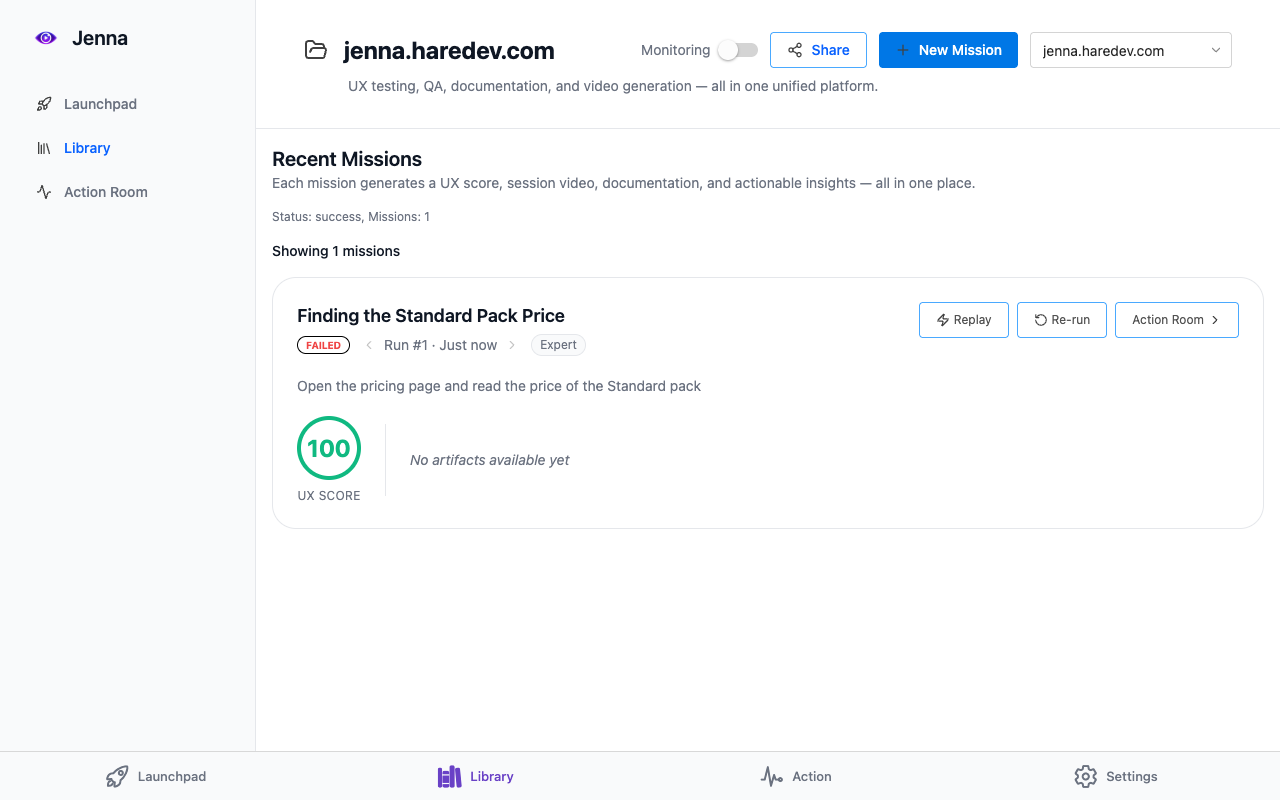
- Project picker at the top right switches between your sites.
- Mission card: name, status badge, run number with arrows to older runs, persona, objective, UX score, artifact links.
- Replay re-plays the recorded path of a successful run without the model, fast and cheap. Use it to check that a journey still works after a change.
- Re-run opens the re-run overlay, see the next section.
- Action Room reopens the run's live or finished view.
- Monitoring switch at the top re-checks the project's missions on a schedule. It spends minutes each time; leave it off unless you want that.
- Share creates a public link, see sharing below.
7. Re-running and duplicating
Re-running is the everyday action after a set-up: a new learner, a new cohort, a new release of the site. Nothing is launched until you confirm.
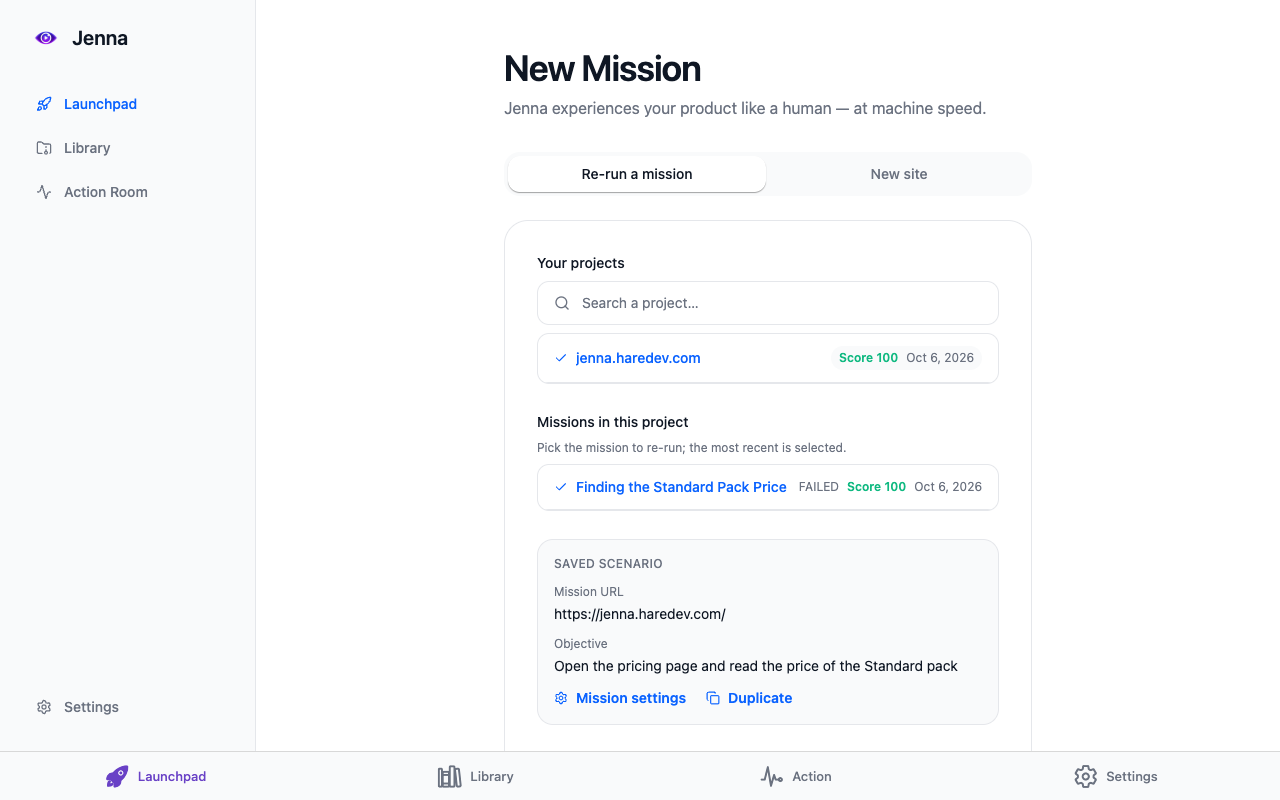
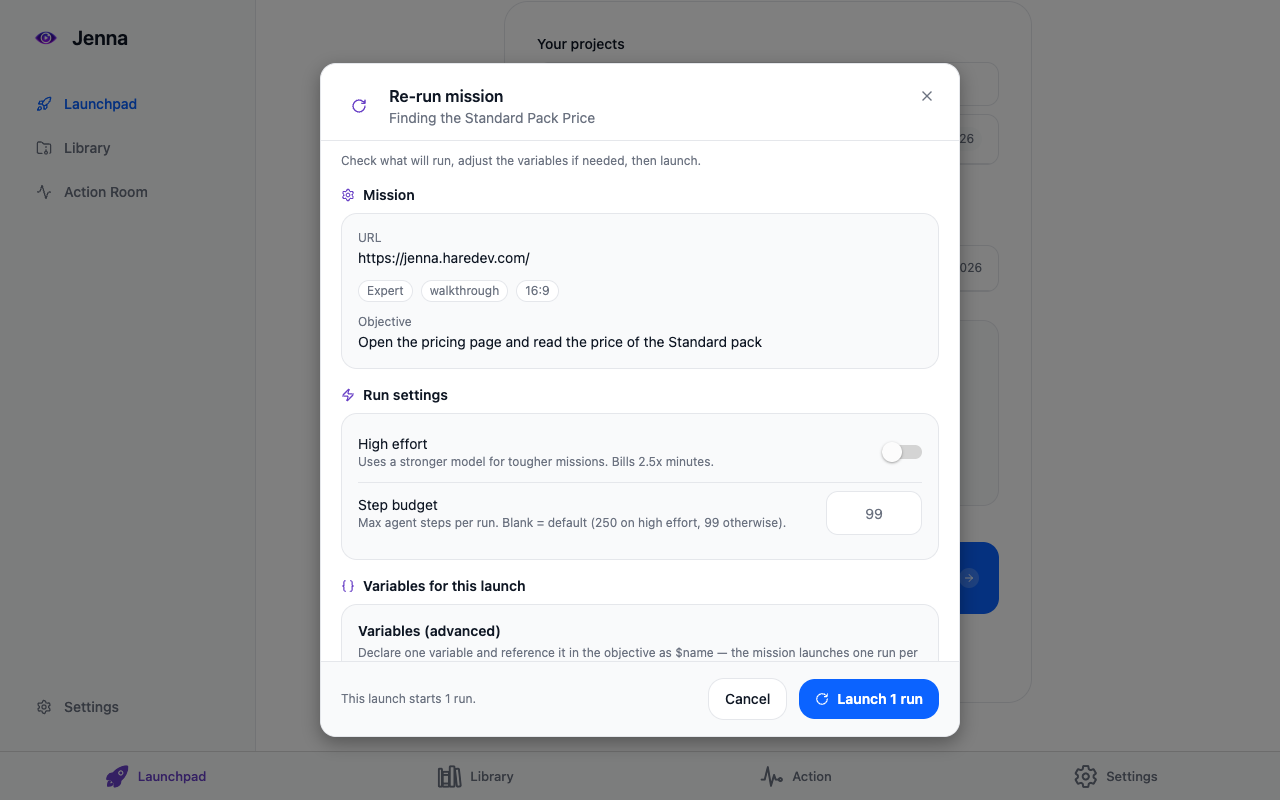
- Mission
- URL, persona, mode, format and the objective, as saved.
- Run settings
- High effort and the step budget, saved on the mission when changed here.
- Variables for this launch
- The cohort. Replace the values to assess different people or sites. Values entered here are used for this launch; to change the saved list, edit it in Mission settings.
- Launch N runs
- Starts the runs. Each run is billed separately. Cancel closes without spending anything.
Duplicating a mission
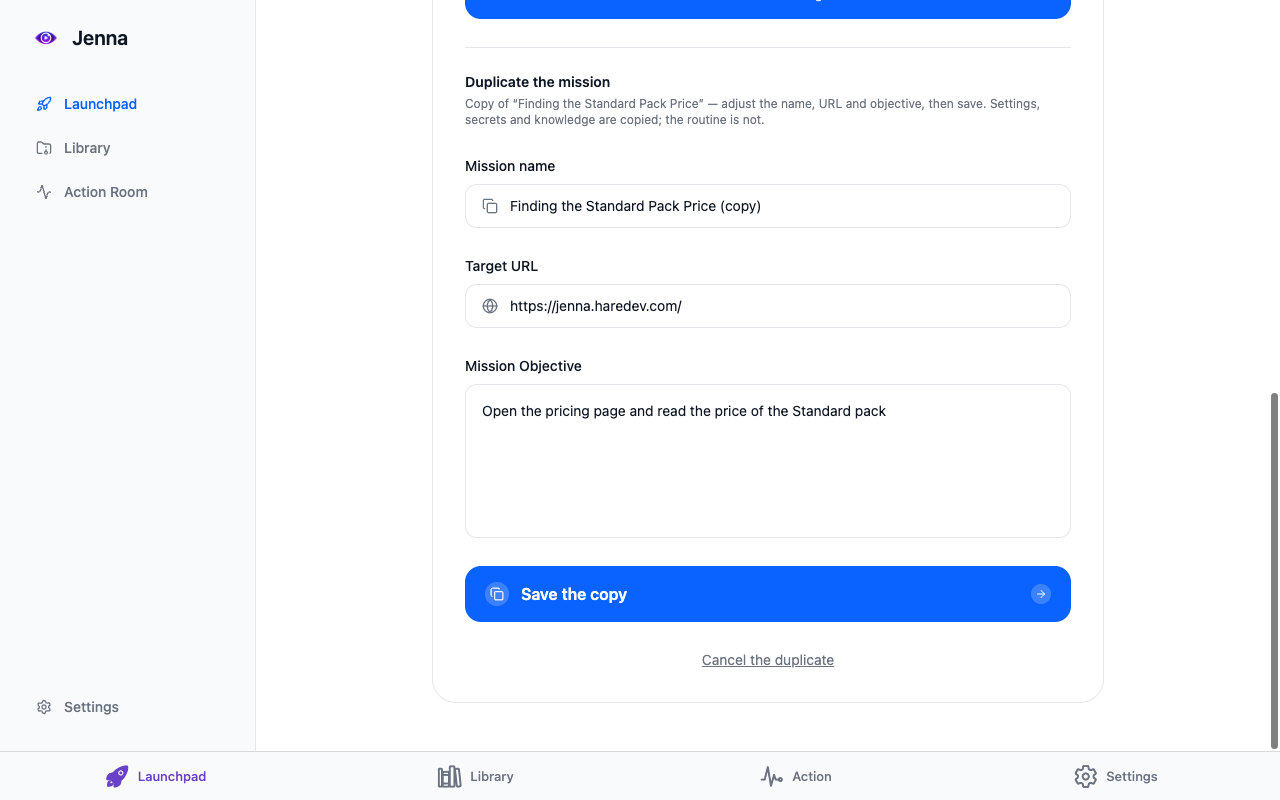
"Duplicate" on the re-run tab, or "Duplicate this mission" in Mission settings, opens a form at the bottom of the Launchpad: name, URL and objective can be changed, settings, secrets and knowledge are copied, the routine is not. Saving creates the copy without running it. Use it for a second site or a second qualification; for a new cohort of the same mission, change the variable values instead.
8. Mission settings: routine, secrets, knowledge, variables
Opened from "Mission settings" on the re-run tab. Everything here is per mission. Sections marked Autopilot need the subscription; without it they show a lock and do nothing.
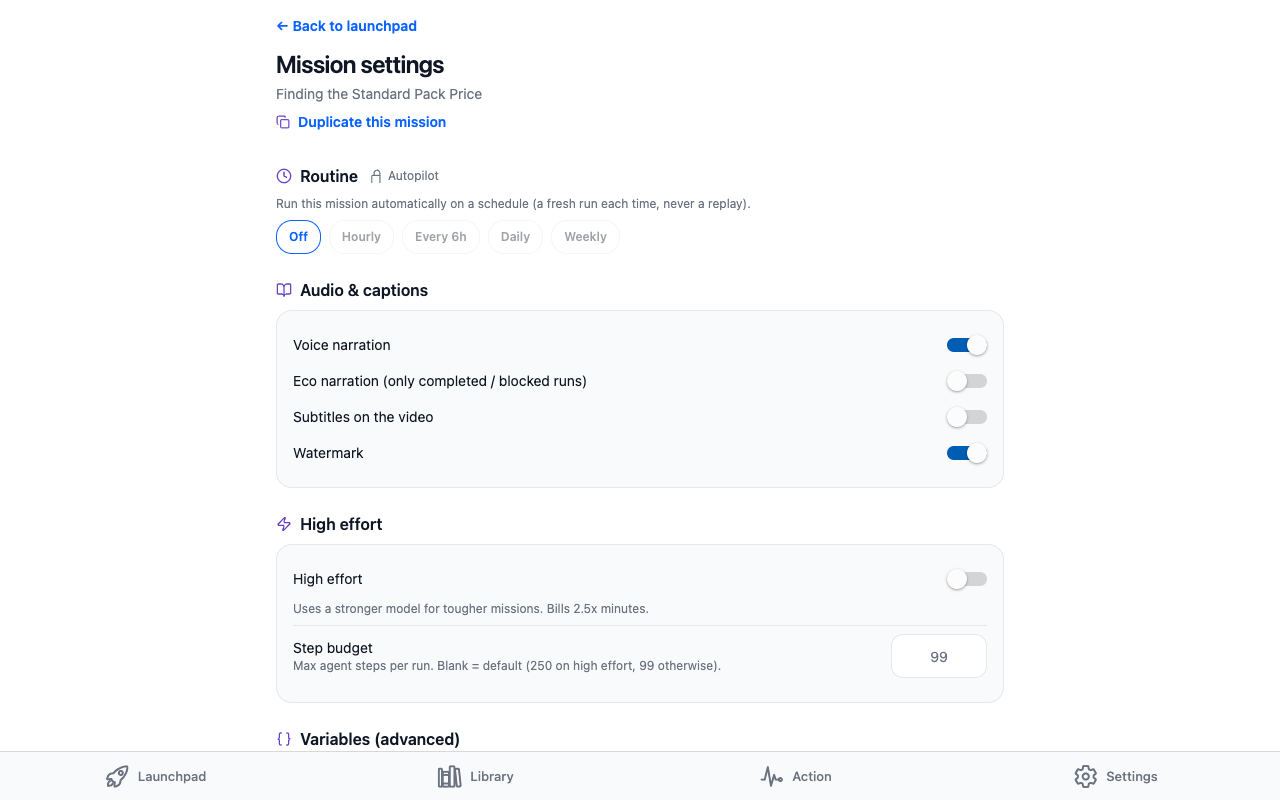
- Routine Autopilot
- Off, Hourly, Every 6h, Daily, Weekly. A fresh run each time, never a replay. Each scheduled run spends minutes, including when there is nothing new to do. For work that waits on other people, such as learner submissions, prefer launching by hand or from your agent when something happens.
- Voice narration
- On by default. Off halves the cost of a run. "Eco narration" narrates only completed or blocked runs.
- Subtitles, Watermark
- Burned into the video.
- High effort, Step budget
- Same as on the re-run overlay. Blank budget means 250 steps on high effort, 99 otherwise. A long chapter of coursework needed about 130 steps on our reference set-up.
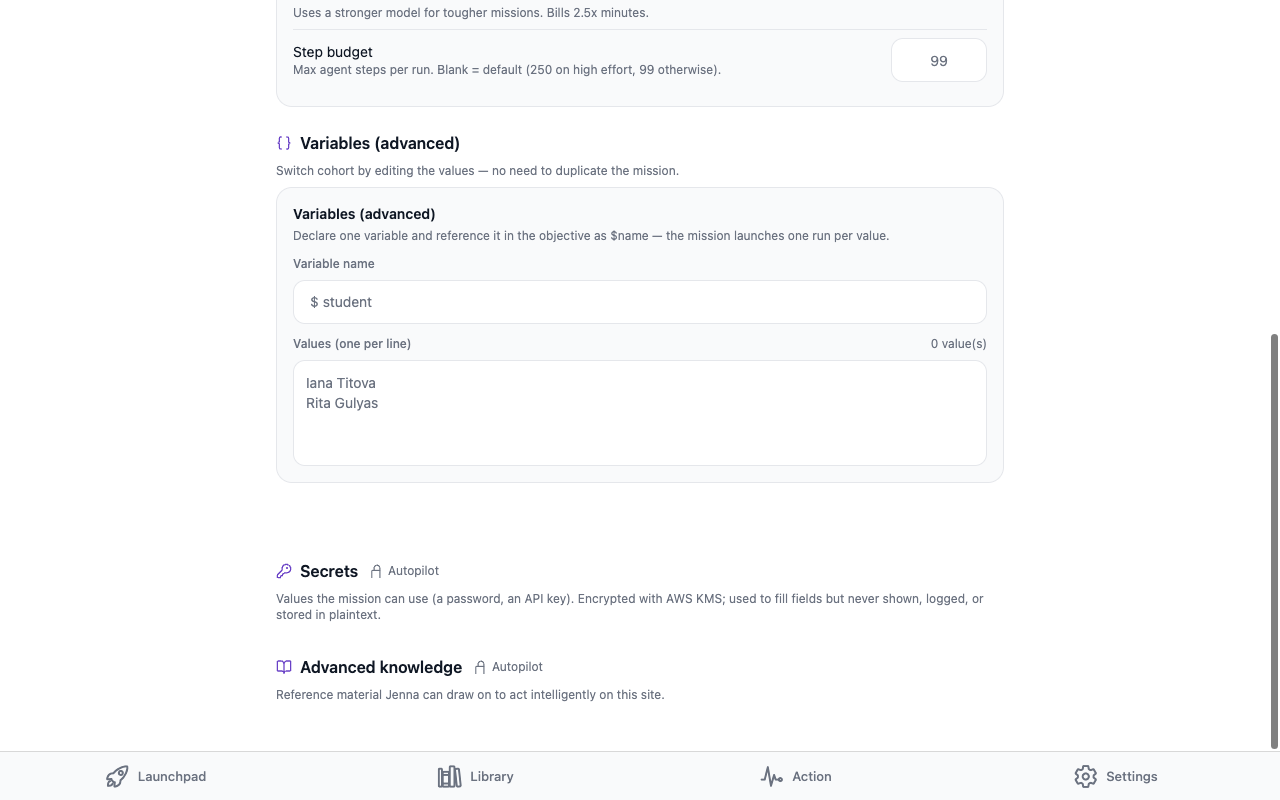
- Variables (advanced)
- The saved variable name and values. Switch cohort by editing the values and pressing Save variable; no need to duplicate the mission.
- Secrets Autopilot
- Credentials the mission may use: a username, a password, an API key. Encrypted with AWS KMS, typed into fields during the run, never shown, logged or stored in plain text. The objective refers to them by name, for example "log in with the FTA_USERNAME and FTA_PASSWORD secrets".
- Advanced knowledge Autopilot
- Reference material Jenna reads during the run: a mark scheme, a checklist, a policy, one entry per topic. Short entries are given to her in full; long ones are indexed and she reads the passage she needs at each step.
After a set-up with us, this is where your credentials and reference material live. You will rarely need to touch them. If a password changes, replace the secret here; the objective does not change.
9. Sharing a project
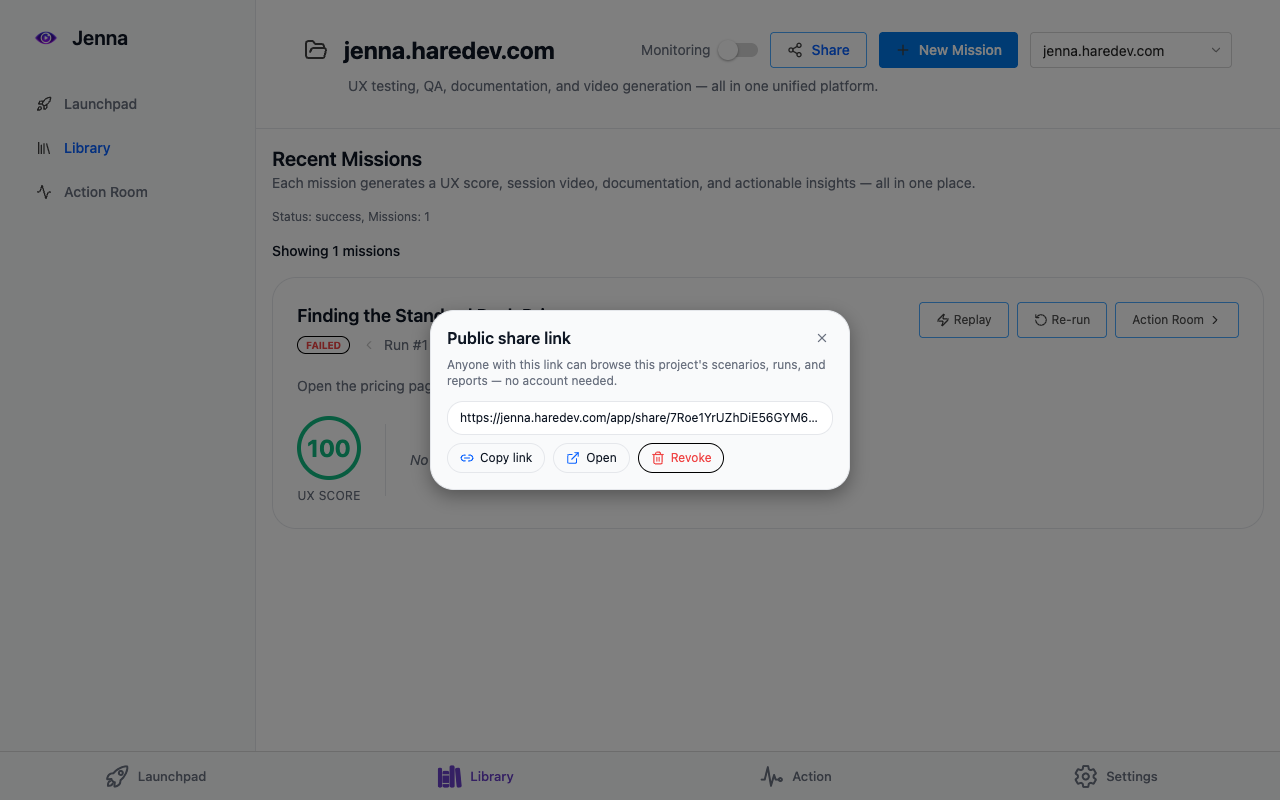
Share in the Library creates a public link at once. Anyone with it can browse the project's missions, runs and reports without an account. Revoke removes it immediately, without confirmation; sharing again creates a new link.
10. Settings, API keys, mission limits
Settings opens on your minutes and the Autopilot subscription, then lists Preference, API keys, Mission limits, Account, Terms and the Help Center.
API keys
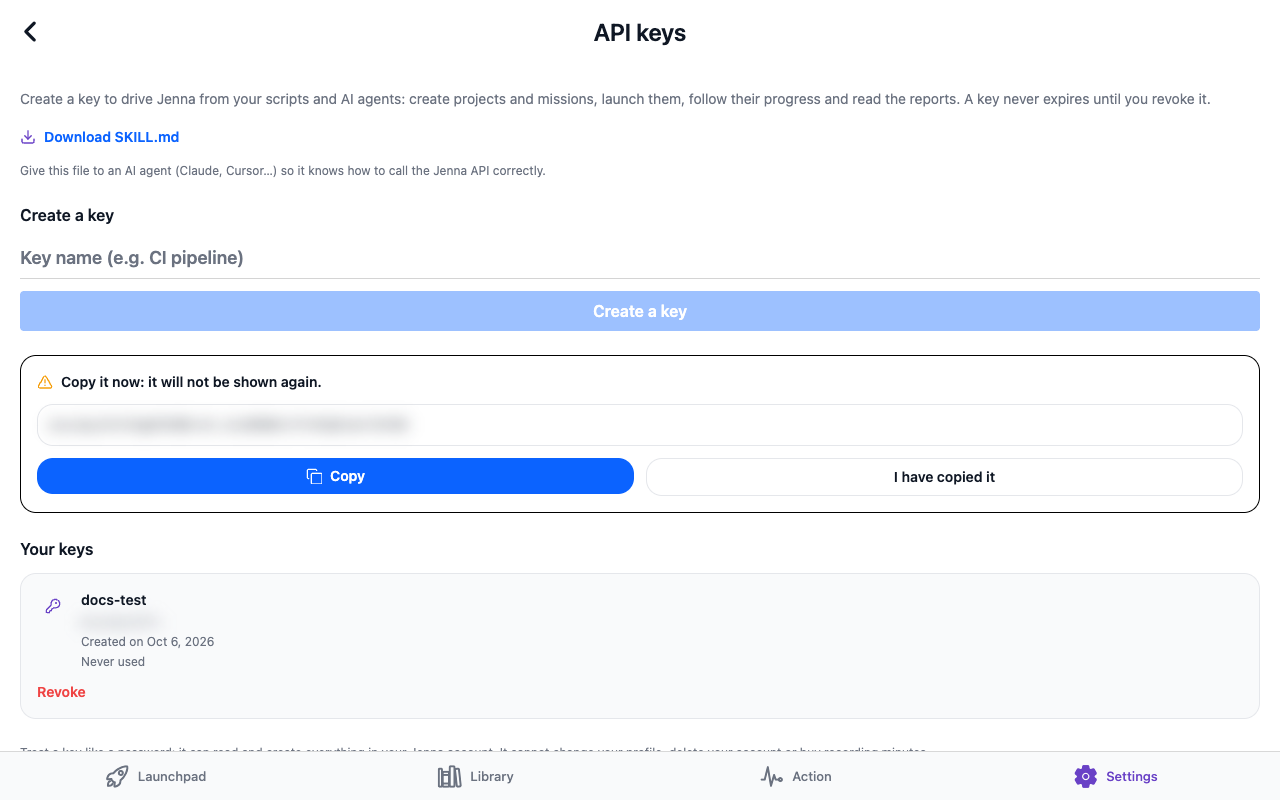
A key lets a script or an AI agent do everything you do in the app except spend money. Name the key after what will use it, copy it when it is shown, it will not be shown again. Revoke stops it at once. The "Download SKILL.md" link on this screen is the file you give an agent; the agent guide explains the rest.
Mission limits
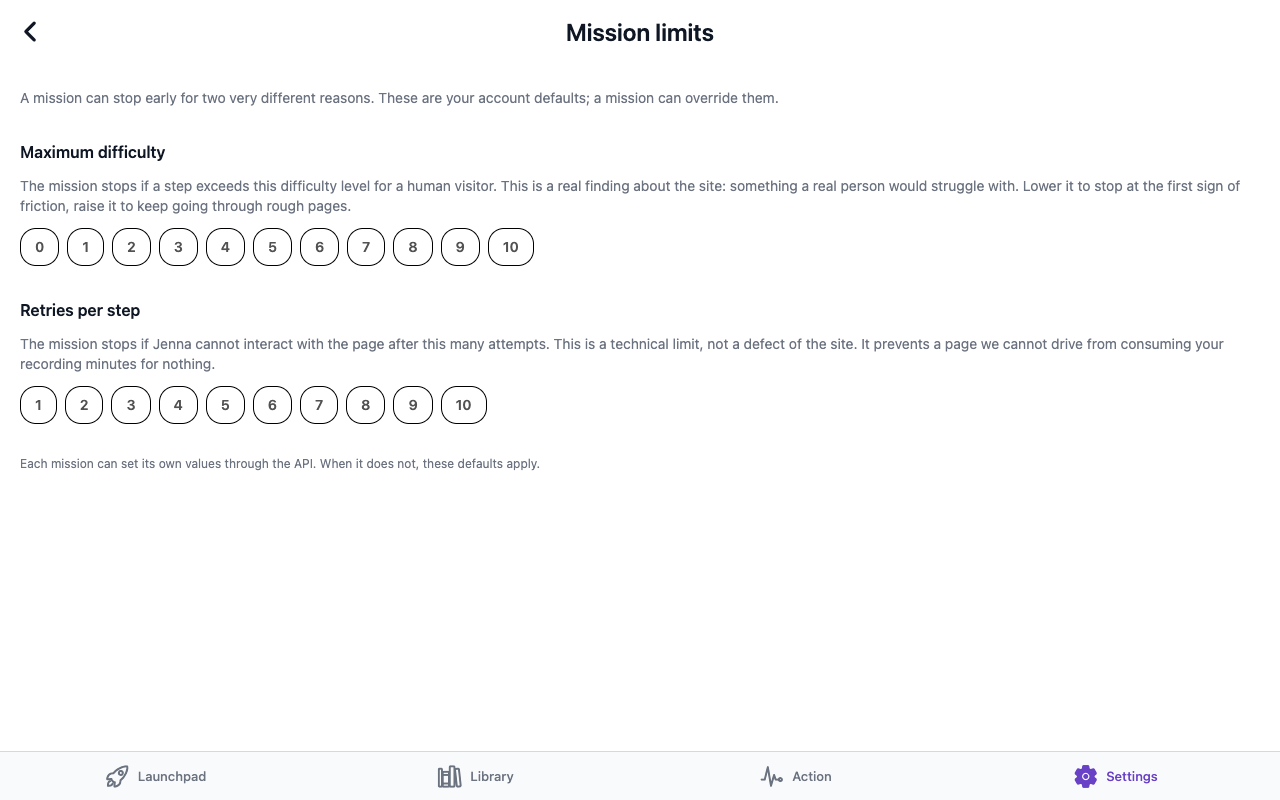
Two account defaults a mission can override. Maximum difficulty, 0 to 10, stops a run when a step would be too hard for a human visitor; that is a finding about the site. Retries per step, 1 to 10, stops a run when Jenna cannot drive a page; that is a technical limit, not a defect, and it keeps a stuck page from spending your minutes.
Preference and Account
Preference holds push and e-mail notifications, appearance and language. Account holds deactivation, deletion, privacy information and Logout. Deleting the account removes missions, routines, secrets, knowledge and artifacts, and forfeits remaining minutes.
11. Balance and billing
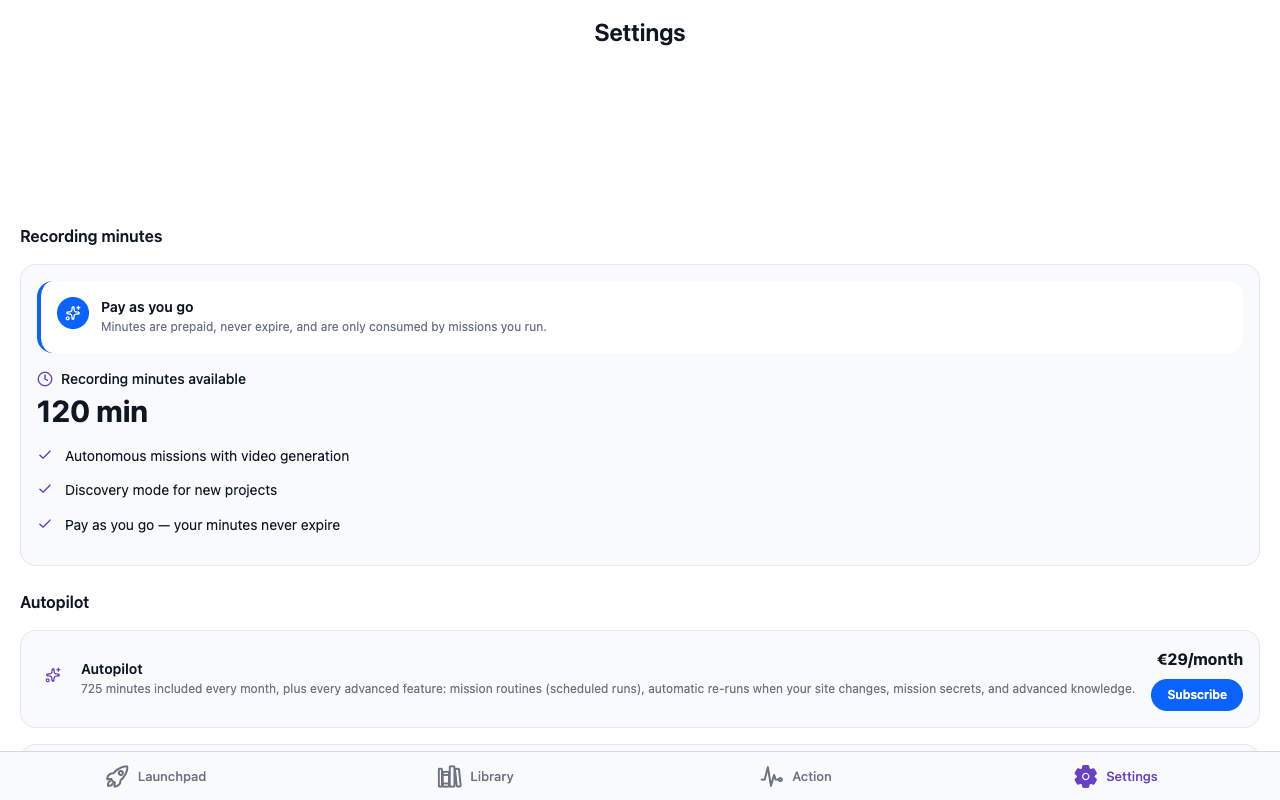
- Recording minutes are prepaid, never expire and are consumed only by runs. High-effort runs are billed at 2.5 times the recorded minutes. The figure refreshes when you reload the page.
- Top up: 120 minutes for €5, 500 for €15, 2,000 for €49, paid by card through Stripe. Minutes are added at once.
- Auto-refill: with a saved card, the Standard pack is bought automatically when the balance drops below 20 minutes. Useful for unattended routines, risky for an account an agent drives in a loop.
- Autopilot, €29 a month: 725 minutes included, plus routines, automatic re-runs when the site changes, secrets and advanced knowledge. Required for any set-up that logs in somewhere or needs reference material.
Only a signed-in person can buy, enable auto-refill or subscribe. An API key cannot. See pricing for the full list.
12. After a handover: your day to day
When we have set a mission up for you, these are the five things you will do, each covered above.
- Launch for a new learner, cohort or site. Launchpad, Re-run a mission, pick the mission, set the variable values, Launch. Section 7.
- Read the result. Library, the mission card: status, score, video, report, step log. For marking work, the portal itself shows the marks and comments; the report is the audit trail. Section 5.
- Check the balance before a batch. Settings, Recording minutes. Six high-effort chapters in parallel used about 300 minutes on our reference set-up. Section 11.
- Change a password or a reference document. Mission settings, Secrets or Advanced knowledge. Section 8.
- Start a second site or qualification. Duplicate the mission, edit, save, then adjust its knowledge. Or ask us for a new set-up. Section 7.
If a run stalls or ends without artifacts, open its Action Room and read the last lines of the log before launching again. Every run is billed, including one that found nothing to do.